Browse > Home / Archive by category 'Handy tools and technology'

#Tip of the day for journalists: Try online video editor Weavly

Weavly is an online video editor which allows you to create “video remixes” using multimedia content from YouTube, SoundCloud and Loopcam.

Editing is done inside the browser.

Weavly has created a page for journalists which explains the benefits and copyright.

It’s worth checking out to Weavly, which is still in beta.

If you have a tip you would like to submit to us at Journalism.co.uk email us using this link.

Tags: , ,

Similar posts:

#Tip of the day for journalists: Eight ideas for using Spundge

Spundge, which launched less than three months ago as a platform to help improve the efficiency of journalists’ digital workflows and their ability to keep track of their beat and stories online, has been adopted by many journalists.

The Spundge blog has gathered examples of eight ways journalists are using Spundge Notebooks.

The post describes how journalists can use Spundge for breaking news, saving and tracking story ideas, and building on personal branding.

Trinity Mirror’s David Higgerson has also blogged about Spundge, and outlining 10 ways journalists can use it.

The post is at this link.

If you have a tip you would like to submit to us at Journalism.co.uk email us using this link.

Tags: ,

Similar posts:

App of the week for journalists: Splice, an easy video editor

App of the week: Splice

Phones: iPhone

Cost: Free (£2.49 to go ad-free)

What is it? Splice is an easy-to-use video editor for iPhone. The best thing is that you won’t need to read a guide to the app before using it.

You can batch add video clips or photos already on your phone, trim the clips and select transitions and add titles.

It is fairly intuitive but if you get stuck there’s a short video that will get you started.

You can export to the iPhone’s camera roll and from there you can send by email, upload to YouTube or connect your phone by USB and add the edited video to your computer.

How is it of use to journalists?

Have you got a favourite app that you use as a journalist? Fill in this form to nominate an app for Journalism.co.uk’s app of the week for journalists.

Tags: , ,

Similar posts:

#Tip of the day for journalists: Use TubeChop to embed part of a video

If you ever want to embed part of a YouTube video rather than the full-length footage, use TubeChop.

This tool was brought to our attention by this post on the 10,000 Words blog.

By adding a YouTube URL or keyword into TubeChop you can select part of the footage and save and embed that selection.

For example, here is a clip taken from a video that was 9 minutes in length. It is cut to only show the first part of of the Felix Baumgartner’s skydive from space.

The photo below demonstrates how easy TubeChop is to use.

If you have a tip you would like to submit to us at Journalism.co.uk email us using this link.

Tags: , ,

Similar posts:

#Tip of the day for journalists: Using Facebook to find stories

Storyful, a service that partners with media companies to aggregate and verify news from social networks, has a guide to Facebook for journalists.

The blog post by Storyful.com editor Fiona McCann explains how journalists can use Facebook’s own search facility, and recommends a tool for anyone who is not logged into a Facebook account.

The post explains how to search public posts by ‘group’, ‘people’ and ‘pages’ within Facebook, and shows how to click on ‘see more results’ to bring up “a host of search filters”.

McCann also recommends Open Status Search [formerly known as Open Facebook Search] and has another great tip:

Open Status Search also offers a ‘get embed code’ button which offers the easily-copied html code for embedding a particular search on your own site, with options to customise width, height and number of search items displayed.

Read the full Storyful blog post.

If you have a tip you would like to submit to us at Journalism.co.uk email us using this link.


Tags: , ,

Similar posts:

Tool of the week for journalists: Story Wheel, for easy audio slideshows

Tool of the week: Story Wheel

What is it? An easy audio slideshow tool using Instagram and SoundCloud

How is it of use to journalists? If you are a journalist who regularly uses Instagram to share photos, here is a tool that will allow you turn the images into a story.

Go to the Story Wheel site, connect your Instagram account, click the pictures you want to use and then record audio, hitting the space bar every time you want the picture to change to the next in your selection.
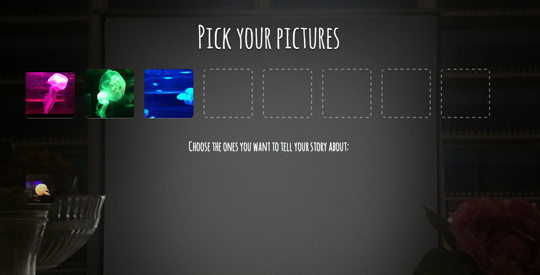
An audio slideshow takes just minutes to make and is a quicker option than using tools such as Soundslides.

Although you can’t embed the audio slideshow, it does offer journalists a great way of telling a story around their images and sharing via social media.

You can see examples of Instagram audio slideshows on the Story Wheel site.

According to the Story Wheel site, the tool come out of a hack day. It was built using the SoundCloud api for the audio part and is now part of SoundCloud Labs.
Tags: , , , ,

Similar posts:

#Tip of the day for journalists: Take a look at this list of tech and tools

The Web Journalist Blog has a “quite random selection of tools and technology to inspire, invoke and maybe innovate” web journalism.

It’s worth taking a look at the handy list of tools to see how many of them you are aware of.

Tipster: Marc Blank-Settle

If you have a tip you would like to submit to us at Journalism.co.uk email us using this link.

Tags: ,

Similar posts:

SoundCloud adds trim and edit features to its apps

September 21st, 2012 | No Comments | Posted by in Handy tools and technology

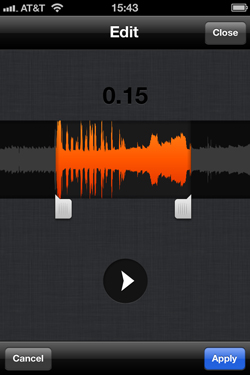
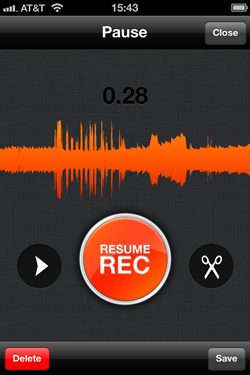
SoundCloud has updated its iPhone, iPad and Android apps adding some really useful features for journalists.

Users can now trim and edit a recording, deleting any mistakes before uploading the audio. The app also now allows pause and resume during recording and has a fade in and fade out option.


Third-party recording apps are also available that work with SoundCloud.

In a release, the audio recording and sharing platform said it now has 20 million registered users.

Released reading:

Tags: ,

Similar posts:

#Tip of the day for journalists: Five pointers on iPhone video

Here are two videos shot on an iPhone with tips on making smartphone films look professional.

It is worth watching both videos with tips including:

1. Use an app that gives you more manual control than the standard iPhone video app. The video suggests Filmic Pro (£2.49), a previous Journalism.co.uk app of the week. The second video (at the link above) demonstrates the importance of white balance.

2. Use studio lightening – or light your subject with a second iPhone.

3. Use a second iPhone to record the audio. The video suggests the standard voice memo app.

4. Use a tripod (the second video recommends three options).

5. Get creative. This includes using a dolly and filters in Final Cut. The film also warns against using the iPhone’s own zoom.

Videos recommended by @dragilev.

If you have a tip you would like to submit to us at Journalism.co.uk email us using this link.

Tags: , ,

Similar posts:

App of the week for journalists: Prismatic, for filtering social news

App of the week: Prismatic

Phones: iPhone

Cost: free

What is it? A social newsreader app that lets you see and respond to tweets about a news story.

How is it of use to journalists? Prismatic gives journalists a way of filtering and personalising news feeds on an iPhone.

Journalism.co.uk has highlighted several social newsreaders in ‘app of the week’ including Flipboard and Zite.

As with other social newsreader apps (there’s a list of 10 here), Prismatic asks users to connect one or more accounts, such as Twitter, Facebook, and Google Reader. You can also set your location to gather news feeds from your area.

Prismatic then mashes the news sources, delivering a personalised news feed.


One feature that helps Prismatic stand out from the crowd of other social news reader apps is that you are able to see a few tweets at the bottom of a news story (see the picture above right). And in addition to reading the tweets, you can reply or retweet from within the app.

Once you have created an account you can also view your feeds on a desktop.

Hat tip: ReadWriteWeb, which has a feature on Prismatic, which explains ‘how to filter the social web on your mobile‘.

Have you got a favourite app that you use as a journalist? Fill in this form to nominate an app for Journalism.co.uk’s app of the week for journalists.

Tags: ,

Similar posts:

© Mousetrap Media Ltd. Theme: modified version of Statement